AI Image Reframe
Turn any photo into a new shape — 1:1, 4:5, 9:16 or 16:9 — without chopping off heads or edges. The AI extends the scene to fill the new frame.
Upload your photo
Drag and drop, or choose a file from your device.
Every platform wants a different shape — a square for the feed, a tall 9:16 for stories and reels, a wide 16:9 for a thumbnail or banner. The usual fix is to crop, which means cutting someone out of the group or slicing off the top of the scene. An AI image reframe does the opposite: instead of cropping in, it grows the canvas out to the ratio you need and paints in the extra background so the picture still looks whole. Upload a photo, pick a shape, and PicTools.AI returns a version that fits the new frame — the same subject, centred and complete, with the sky, floor or surroundings naturally continued into the new space.
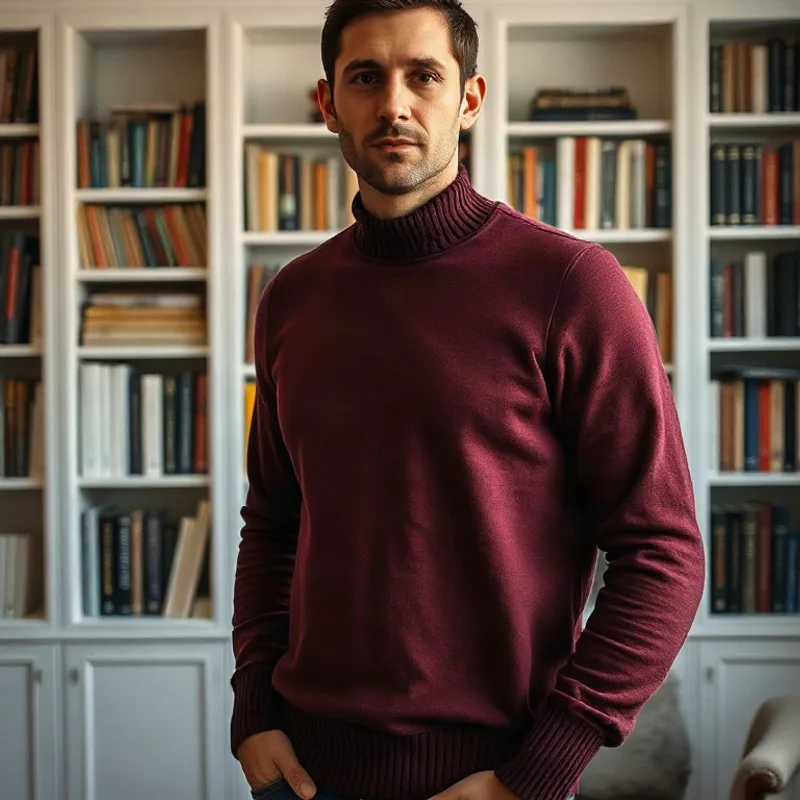
Original portrait
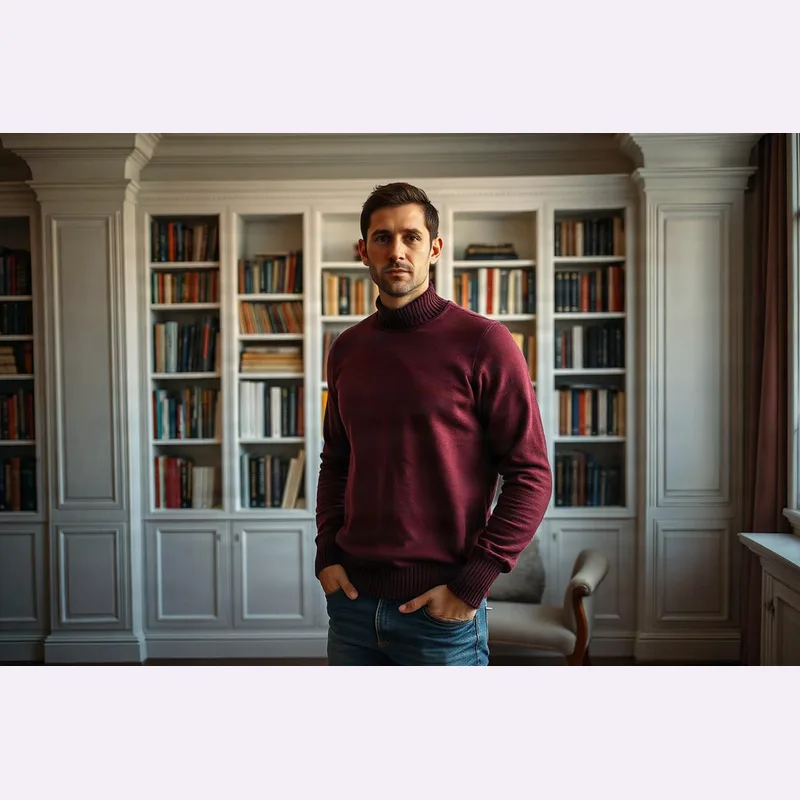
Reframed to 16:9
How the AI image reframe works
Upload your image
Drag in a JPG, PNG or WebP — a portrait, a product shot or a screenshot. Nothing to install, and you can start before you create an account.
Pick a new shape
Choose a target ratio — Square 1:1, Portrait 4:5, Story 9:16 or Wide 16:9. The AI grows the canvas to match and fills the new area so nothing gets cut off.
Download the reframed photo
Save the result ready to post, print or upload — perfectly sized for the feed, stories, thumbnails or banners without an awkward crop.
What you can do with a reframed photo
Because reframing extends the scene instead of cropping it, one photo can fit every placement without losing the subject.
One photo, every platform
Reshape a single shot for the square feed, a 9:16 story and a 16:9 thumbnail — no re-shoot and no cutting people out of the frame.
Fix an awkward crop
Give a tightly-cropped photo room to breathe by extending the ratio, so the subject no longer looks squeezed against the edges.
Banners & cover images
Turn a vertical or square photo into a clean widescreen banner for a website header, YouTube thumbnail or social cover.
Print & frame sizes
Reframe to a standard print ratio so your photo fills the frame edge-to-edge instead of leaving white borders or cropping key detail.
Explore more photo tools
AI Photo Extender
Just need more room on every side? Uncrop and expand the canvas while keeping the same shape.
AI Image Upscaler
Make the reframed photo razor-sharp — rebuild detail and push it to full HD resolution.
AI Photo Editor
Edit any photo by typing — change the background, outfit or lighting, then reframe the result.
AI Image Reframe FAQs
No — it's the opposite. Cropping cuts into your photo to force a new ratio and throws pixels away. Reframing grows the canvas outward to the new ratio and uses AI to paint in the extra background, so your subject stays complete.
You can reframe to the shapes people actually need: Square 1:1 for the feed, Portrait 4:5, Story/Reel 9:16, and Wide 16:9 for thumbnails and banners. Pick one and the AI fills the new frame.
Yes. The original photo is kept whole and centred — the AI only generates the new area around it, matching the existing background, so faces and important detail are never cropped out.
Photos with a clear subject and some background to continue — portraits, products, landscapes and group shots — reframe cleanly. Busy or highly detailed edges are the hardest for any model to extend.
You can try it free. Reframing a photo uses one credit; sign up to get welcome credits with no credit card required.