AI Photo Extender
Expand a photo past its edges — give a cropped shot more room and let the AI paint the surroundings that were never in the frame.
Upload your photo
Drag and drop, or choose a file from your device.
An AI photo extender adds to your picture instead of taking away. When a shot is cropped too tight — someone's head near the top edge, no room above or to the sides, a subject squeezed into the corner — the extender grows the canvas outward and generates the background that would have been there if the camera had pulled back. Upload your photo, choose how much bigger to make it, and PicTools.AI continues the scene past the original borders: more sky, more floor, more wall, matched to the lighting and texture already in the shot. It's the fix for photos that feel claustrophobic, and the fastest way to give a cropped image the breathing room a design or print needs.
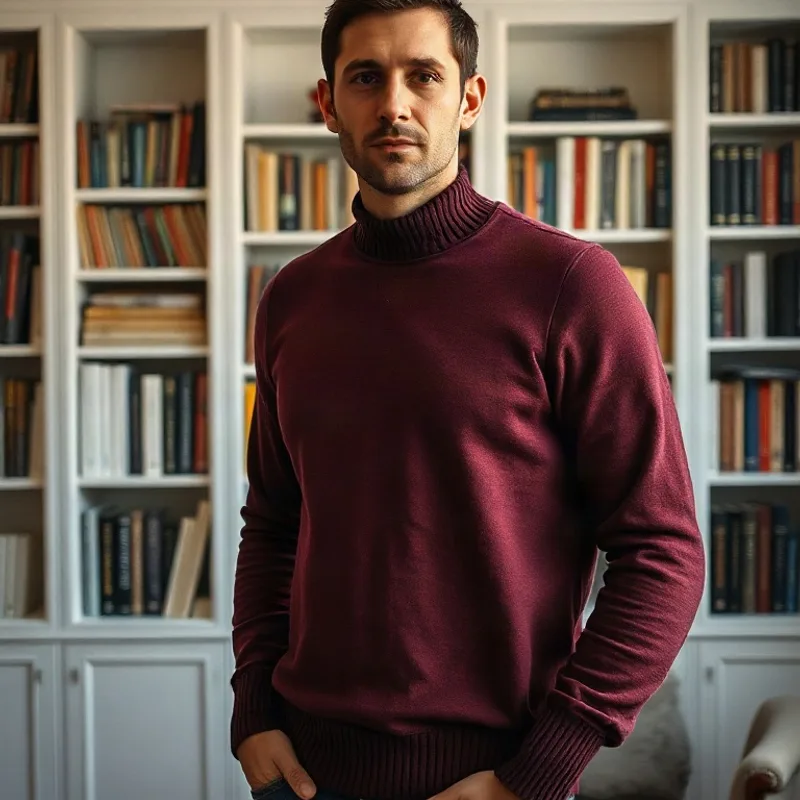
Tight original
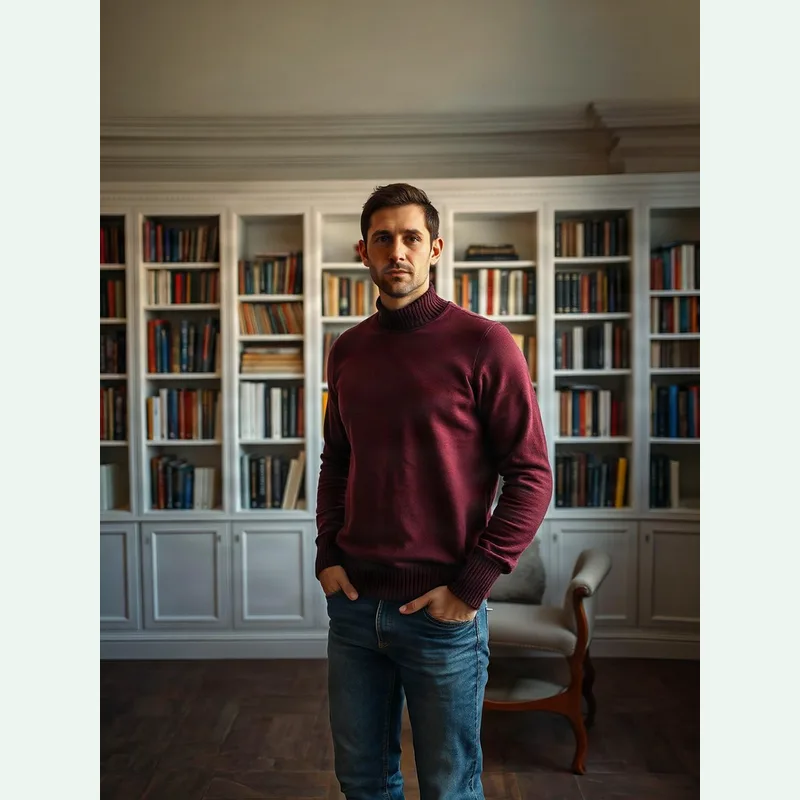
Expanded 1.5×
How the AI photo extender works
Upload your image
Drag in a JPG, PNG or WebP — a selfie, a product shot or any photo that feels cropped too tight. Nothing to install, and you can start before you create an account.
Choose how far to expand
Pick how much bigger the canvas should get — 1.5× or 2×. The AI grows the photo outward on every side and paints in surroundings that match the existing scene.
Download the expanded photo
Save the result with the extra room added, ready for a design, a print layout or a placement that needed more space around the subject.
What you can do with an expanded photo
Because the extender generates real surroundings rather than stretching pixels, the extra space blends in and the photo keeps its proportions.
Uncrop a tight shot
Add space above a head, beside a subject or below the feet when the original was framed too close — no stretching or distortion.
Make room for text & design
Expand the canvas to create clean background space for a headline, logo or call-to-action, without covering the subject.
Fit a bigger layout
Extend a photo so it fills a larger placement — a hero section, a slide or a print — when the original simply wasn't wide or tall enough.
Recover a cramped composition
Give a cramped group photo or product shot more air around the edges so it feels composed instead of squeezed into the frame.
Explore more photo tools
AI Image Reframe
Need a specific shape instead of just more room? Reframe to 1:1, 4:5, 9:16 or 16:9 without cropping.
AI Image Upscaler
Make the expanded photo razor-sharp — rebuild detail and push it to full HD resolution.
AI Photo Editor
Edit any photo by typing — change the background, outfit or lighting, then expand the result.
AI Photo Extender FAQs
It expands your photo beyond its original borders — a technique called outpainting or uncropping. Instead of stretching the image, it generates new background on every side that matches the existing scene, so the subject gets more room.
Reframing changes the aspect ratio (shape) of a photo — square, portrait, widescreen. The extender keeps your composition and simply adds more space on all sides, like the camera had pulled back. Many people use both together.
No. The original pixels are never stretched — they stay exactly as shot. The AI only paints in the new area around them, matching the lighting and texture of the scene so the join is seamless.
You can grow the canvas up to about 2× its original size. Smaller expansions look the most natural; very large expansions give the AI more empty space to invent, so simpler backgrounds work best.
You can try it free. Expanding a photo uses one credit; sign up to get welcome credits with no credit card required.