Comic Book Filter for Photos
Turn a photo into comic book art with ink outlines and halftone shading
Upload your photo
Drag and drop, or choose a file from your device.
Before & After: Comic Book Filter
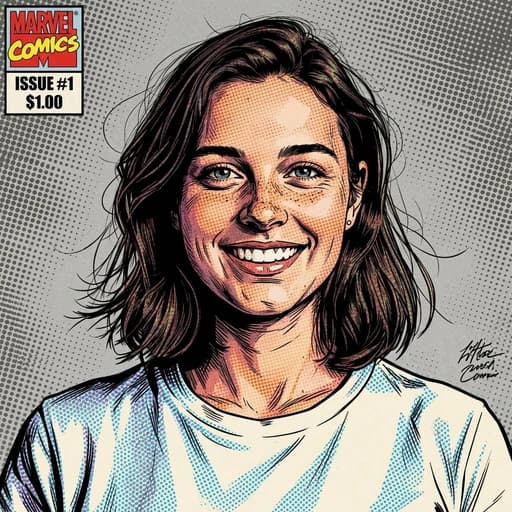
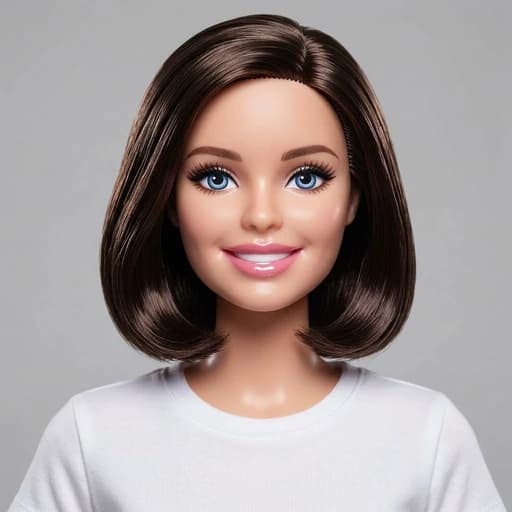
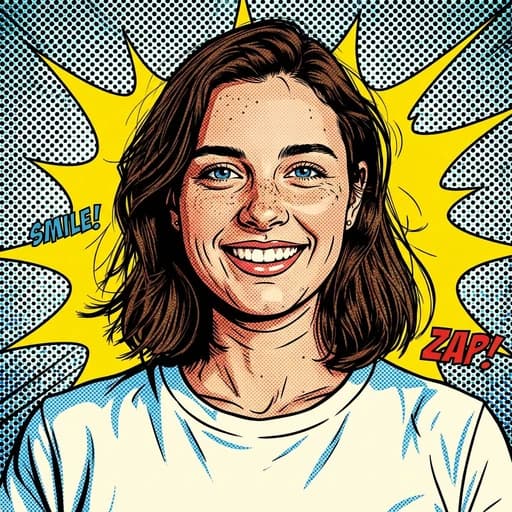
Example: left, original portrait; right, comic book version with halftone shading and sound effects. Drag to compare.

Before
After
Tap to compare
What this filter changes
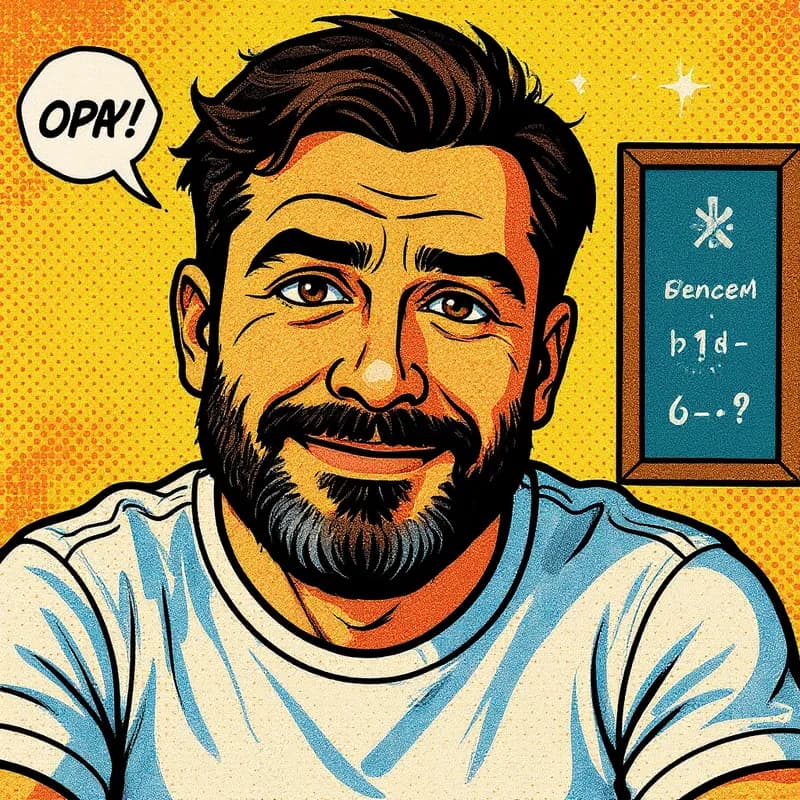
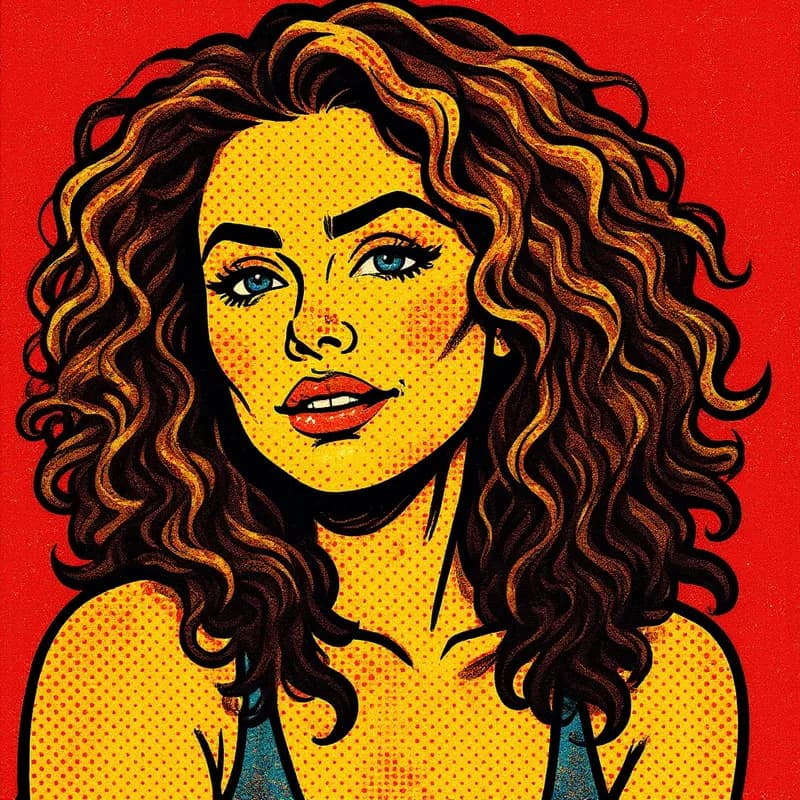
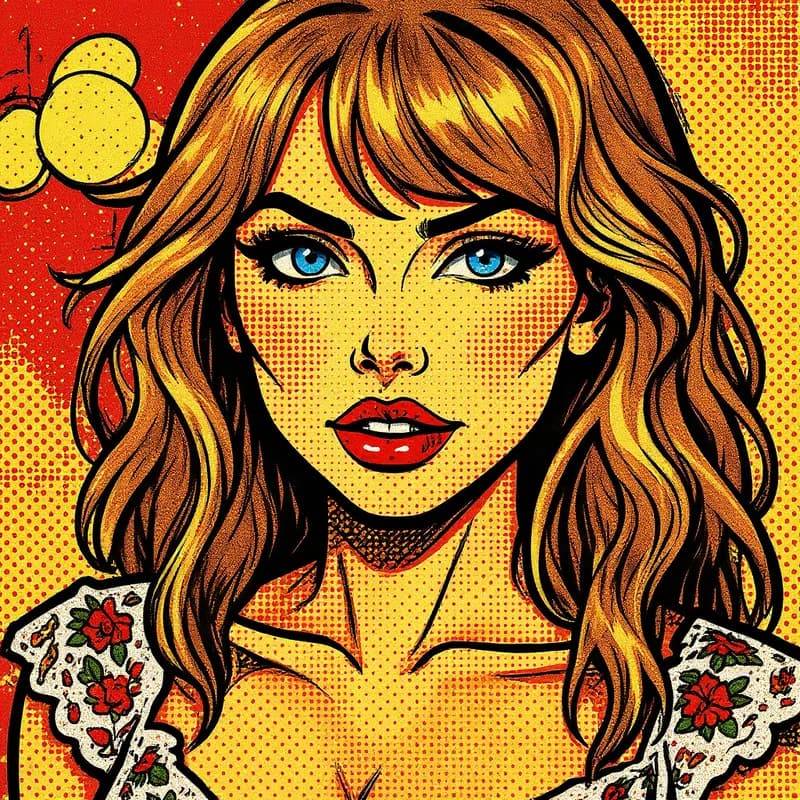
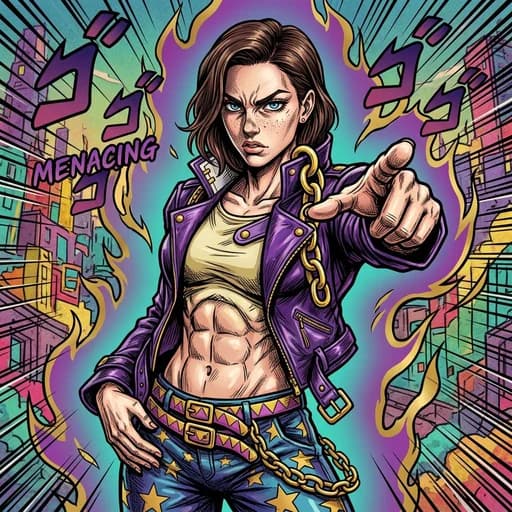
Redraw your photo as comic book art. In the example above, the portrait gets bold ink outlines, halftone dot shading, a yellow burst backdrop and sound-effect lettering. For a superhero look, the Marvel Comics filter is the closer fit.
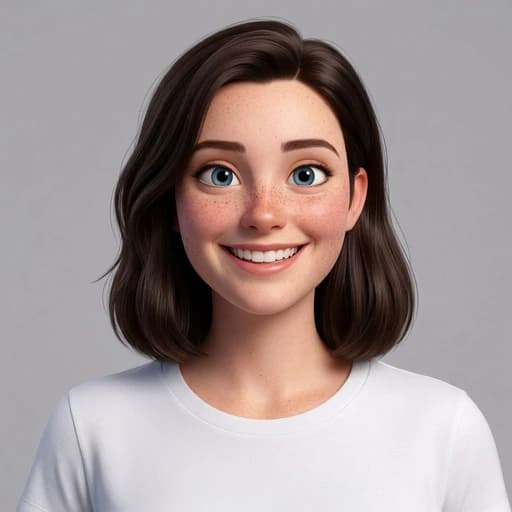
Try it for: Profile pictures and fan posters. The example turns a plain studio portrait into a bold comic image.
How to use this filter
Upload here, then continue in the editor.
1. Upload a clear photo
A front-facing portrait like the example above.
2. Apply the comic filter
The AI redraws the whole photo, background included, as comic art.
3. Check the result
Look at the face, outlines and backdrop against your original photo.
Tips & limitations
- The whole image is redrawn, so the original background may be replaced with a comic backdrop.
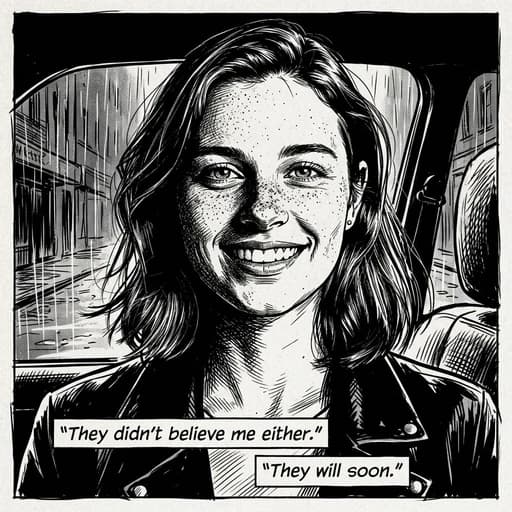
- The example shows one comic-style image, not a multi-panel strip.
Last reviewed by PicTools.AI editorial.
Comic Book Filter FAQs
Upload a photo to PicTools.AI and apply the Comic Book filter. In the example above, the AI redraws the portrait with ink outlines, halftone shading and a comic-style backdrop.
You can try PicTools.AI with a limited free allowance. Continue in the app to check the allowance available to your account. More edits require a credit pack or subscription.
Comic Book gives a general comic panel look: ink lines, halftone dots and a bold backdrop. Marvel Comics aims for a superhero illustration with heroic, dramatic lighting.
In the example above, the face, smile and pose stay recognizable while the whole image is redrawn and the background is replaced. Compare your result with your original photo.
No. As in the example above, one photo becomes one comic-style image, not a multi-panel strip with dialogue.
See More Comic Book Filter Examples ▾
Comic Book Filter Examples
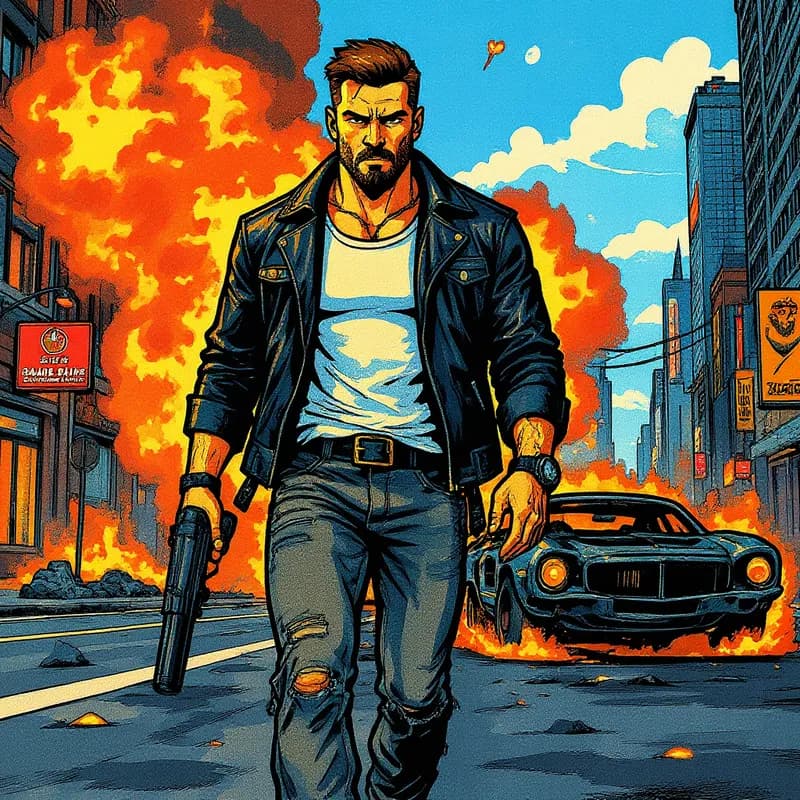
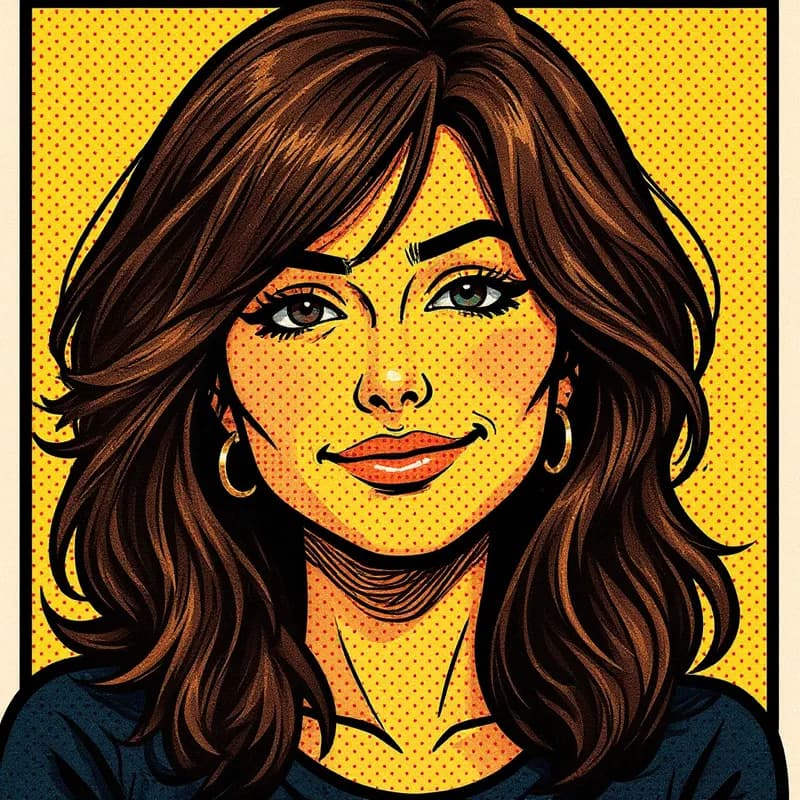
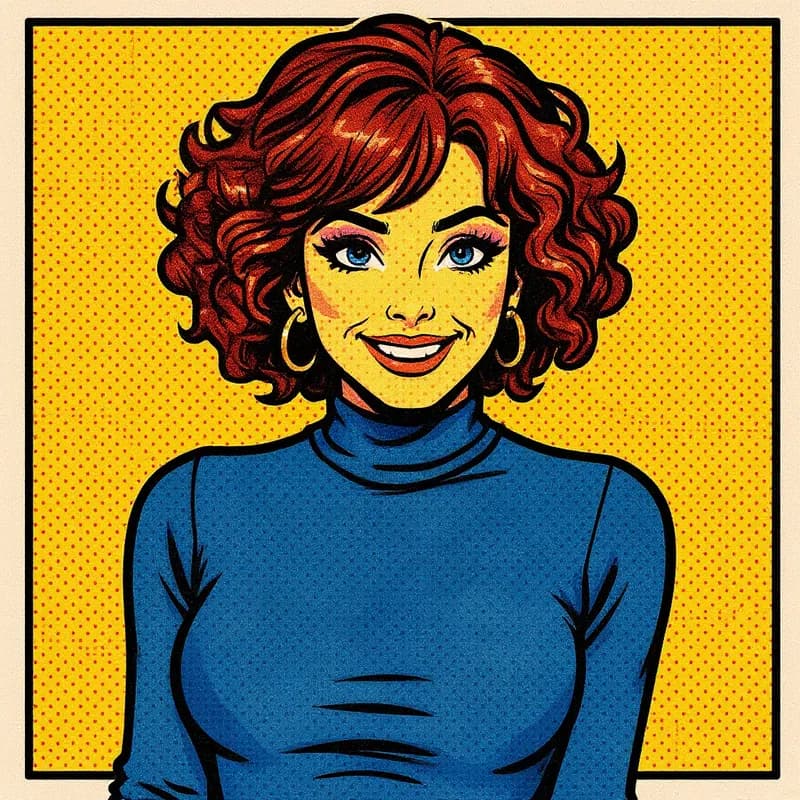
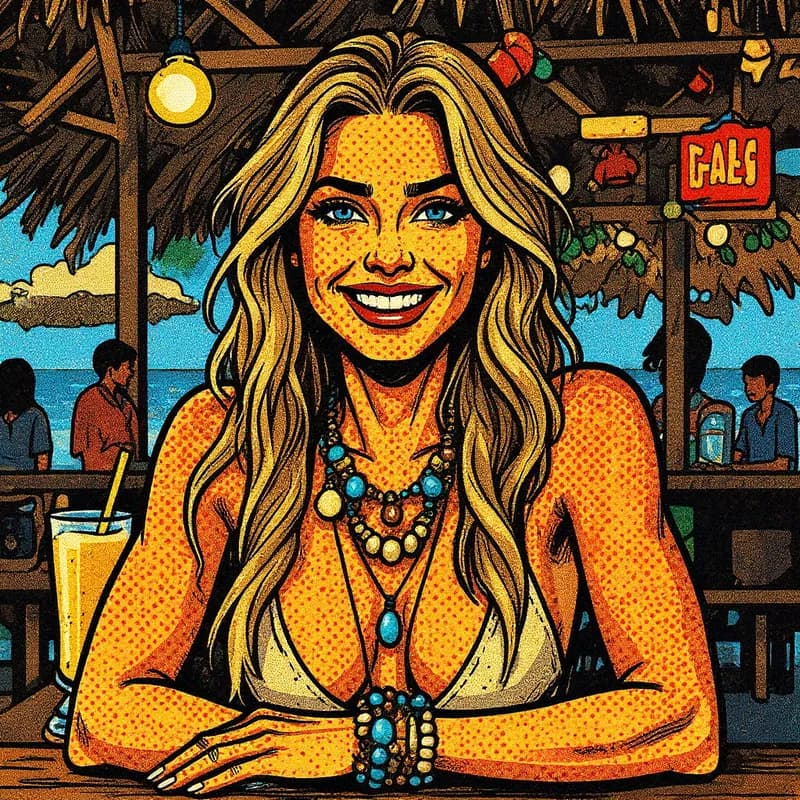
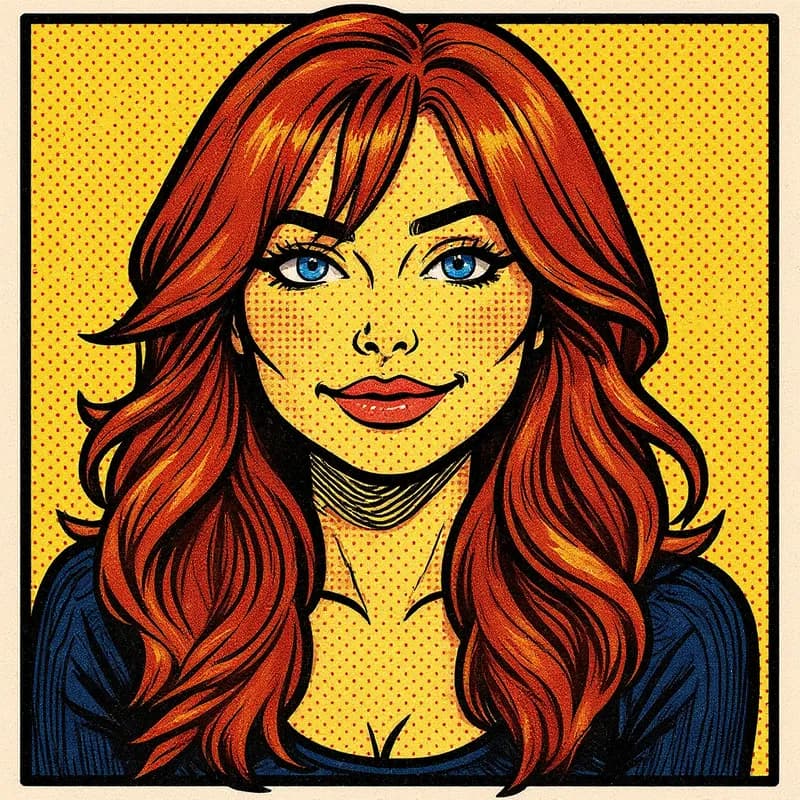
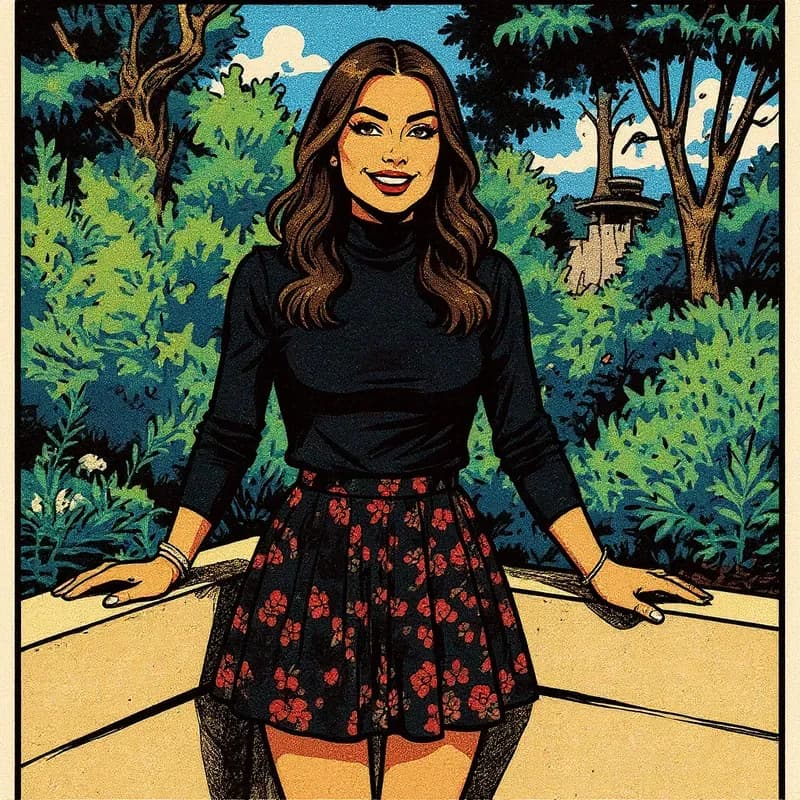
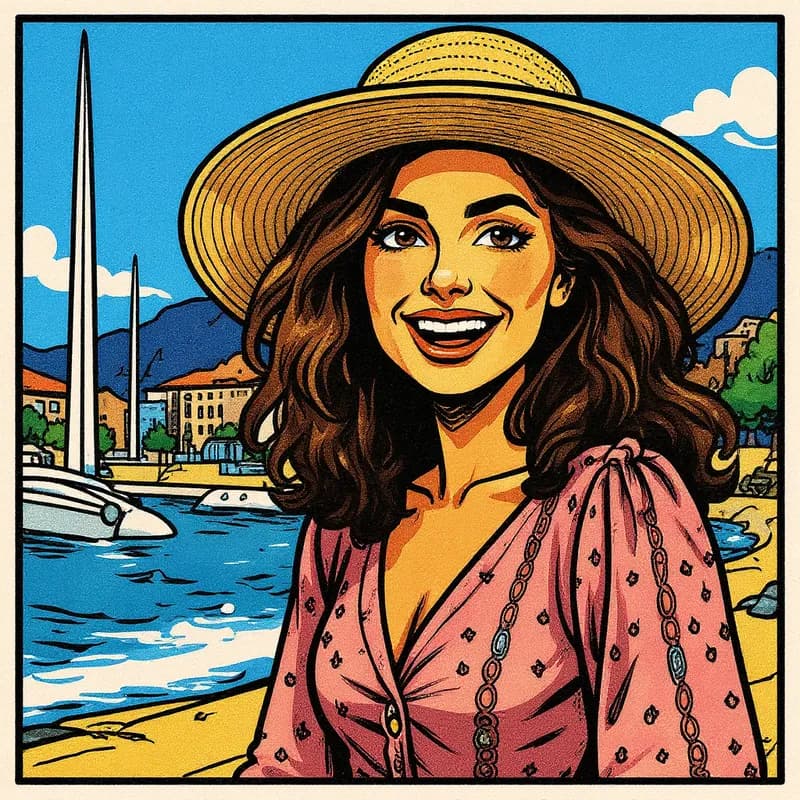
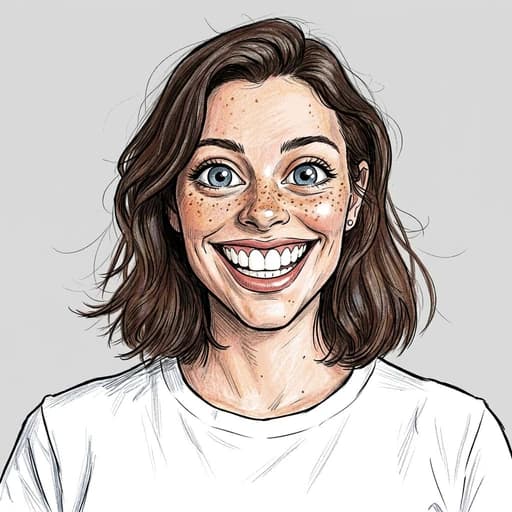
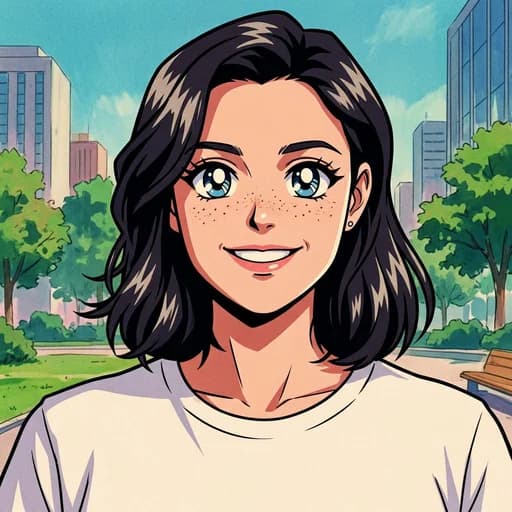
Photos redrawn as comic book art