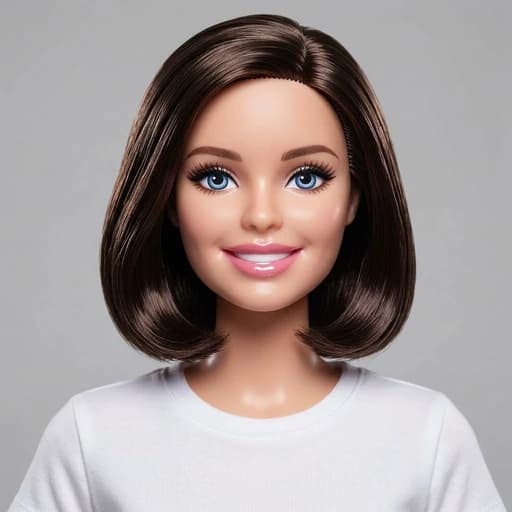
Smile AI Filter
See your new look by applying the Happy Face Effect with AI
Upload your photo
Drag and drop, or choose a file from your device.
Before & After: Smile Filter
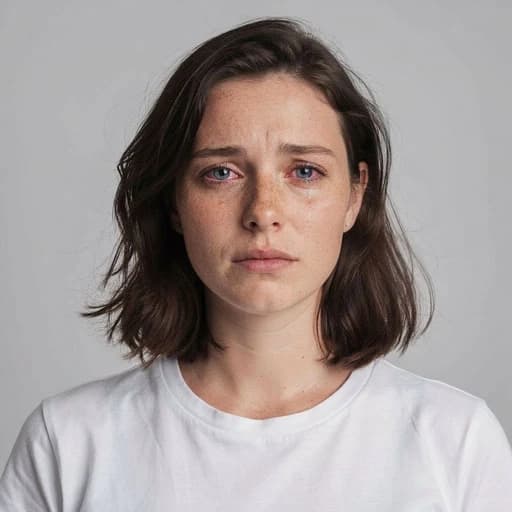
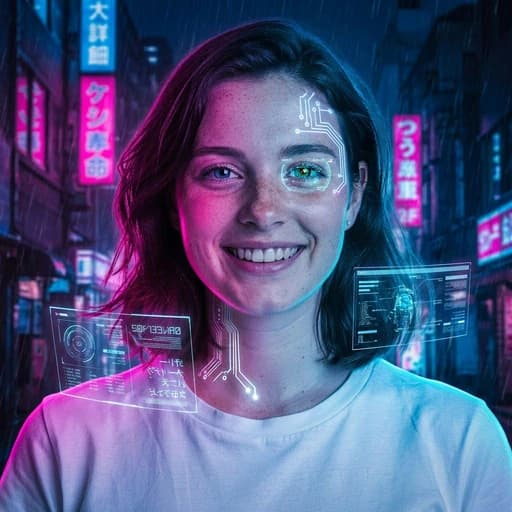
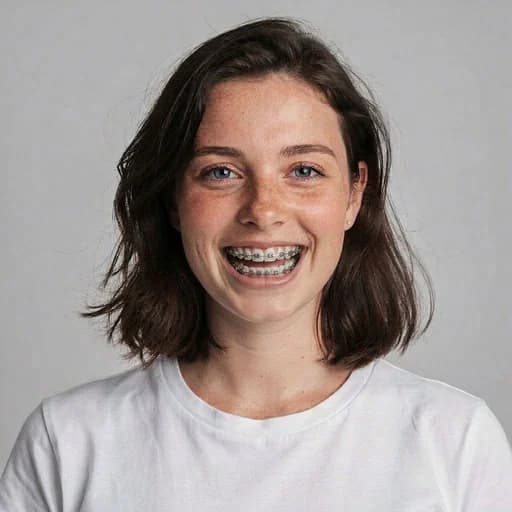
Example: left, original smile; right, a broader AI-generated smile. Drag to compare.

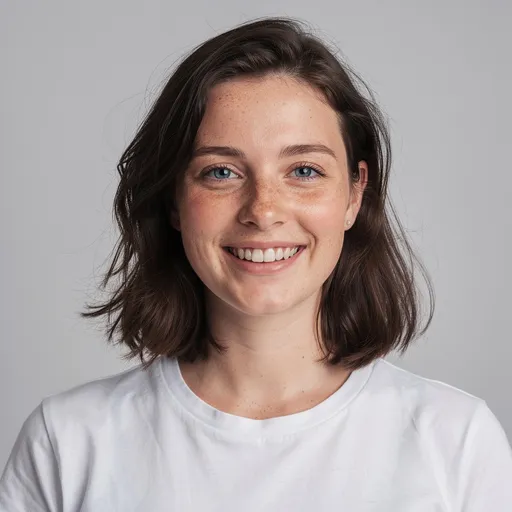
Before
After
Tap to compare
What this filter changes
Try adding a smile to a photo or making an existing smile broader. Facial details can change, so compare the result with your original.
Try it for: A friendlier profile photo. Try a smiling version of a casual portrait and decide whether the result suits you.
How to use this filter
Upload here, then continue in the editor.
1. Upload a clear portrait
Choose a face-on photo with the mouth and cheeks visible.
2. Apply the smile filter
Generate a smiling expression in the editor.
3. Review and download
Check the teeth, lips and eyes before saving the edited portrait.
Tips & limitations
- Teeth are AI-generated and may not match your own; this is not a dental preview.
Last reviewed by PicTools.AI editorial.
Smile AI Filter FAQs
Upload a clear portrait and apply the smile filter. Review the generated expression, especially the lips, teeth and eyes, before downloading.
You can try PicTools.AI with a limited free allowance. Continue in the app to check the allowance available to your account. More edits require a credit pack or subscription.
Yes. It can turn an existing smile into a broader, teeth-showing expression, as in the example above. The result depends on the starting photo.
It can. The AI generates the smile rather than revealing your real teeth. Lips, cheeks, eyes and other details may also change, so compare the result with your original.
Choose a clear, face-on portrait with the mouth and cheeks unobstructed. A strong side angle, hand over the mouth or heavy blur gives the model less facial detail to work with.
See More Smile Filter Examples ▾
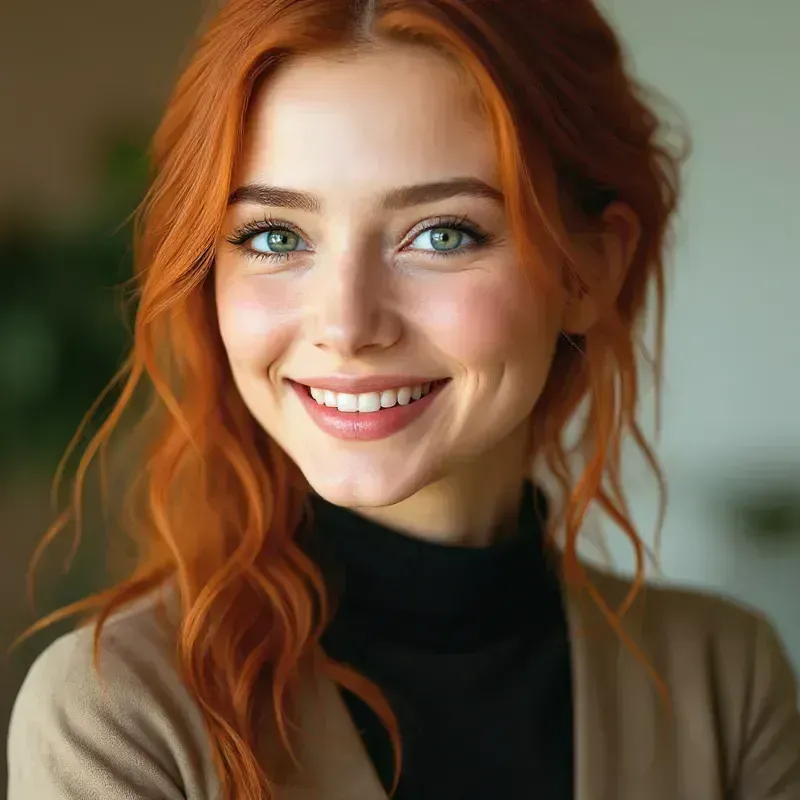
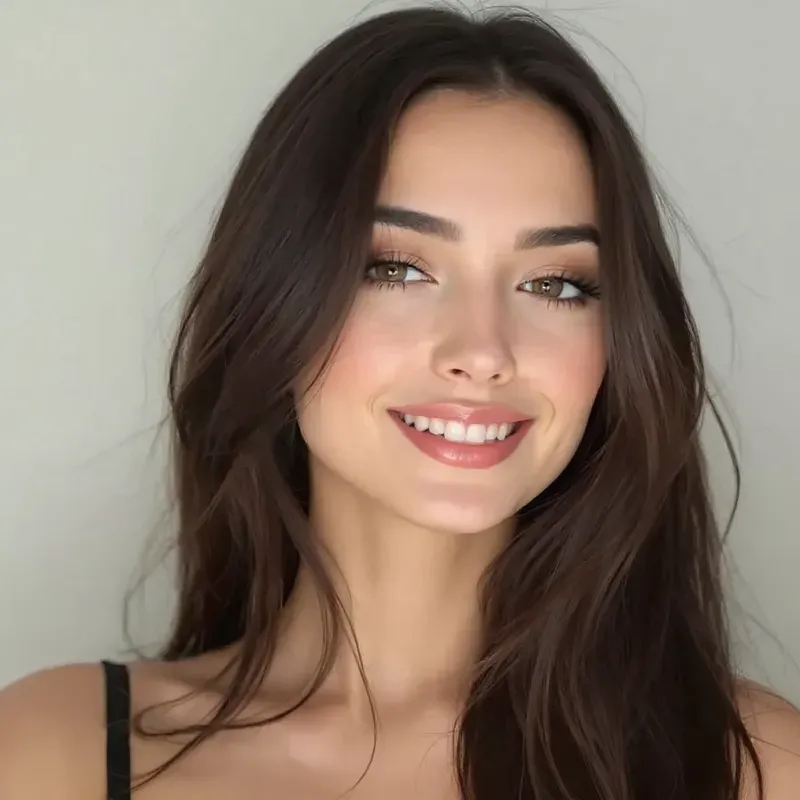
Smile AI Filter Examples
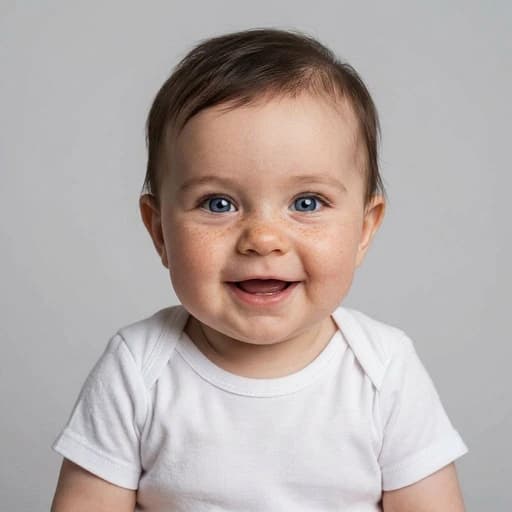
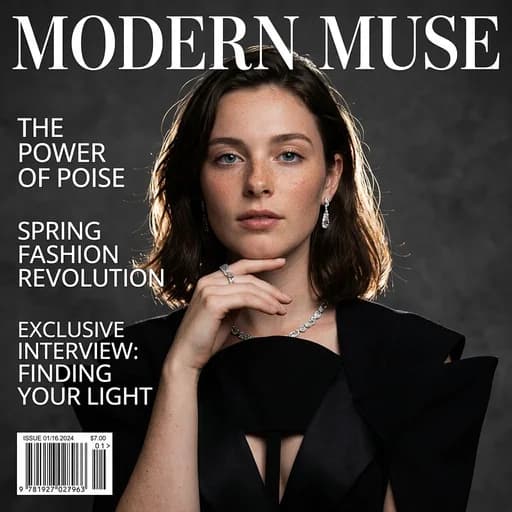
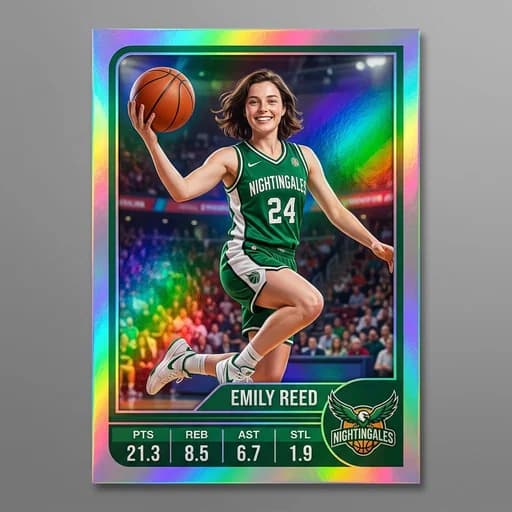
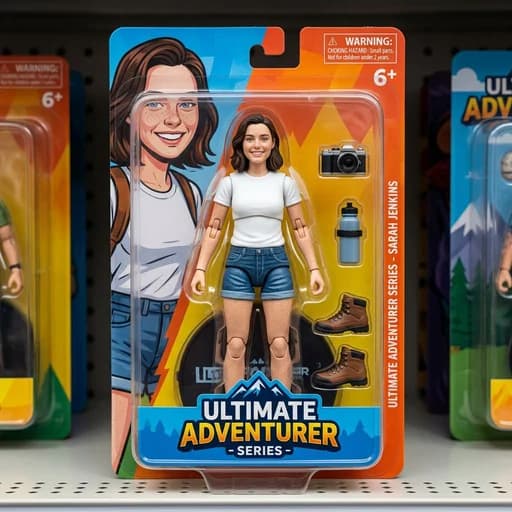
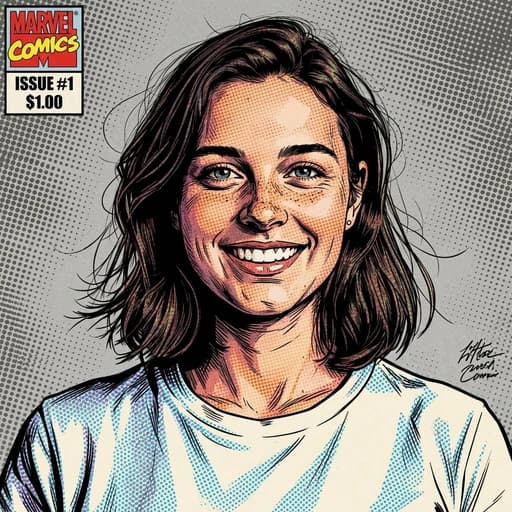
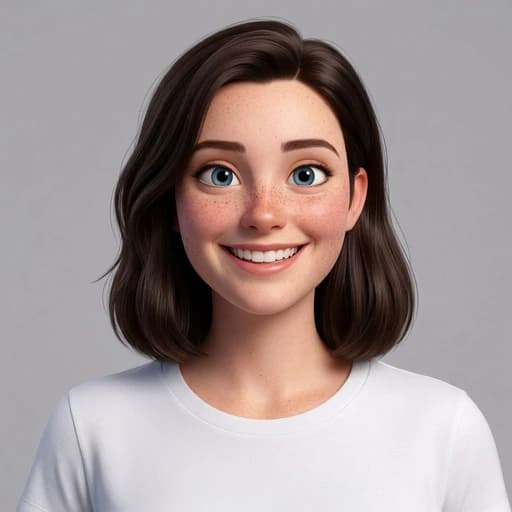
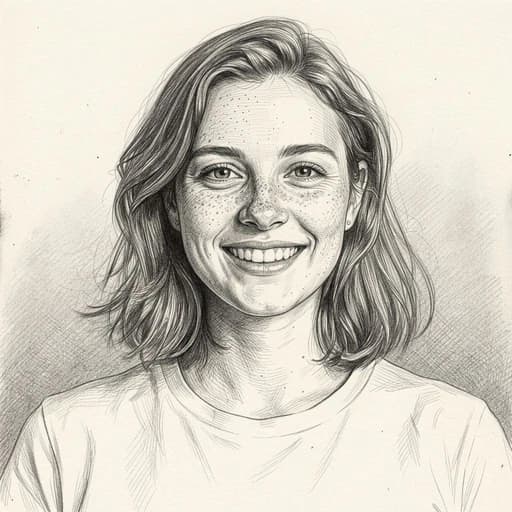
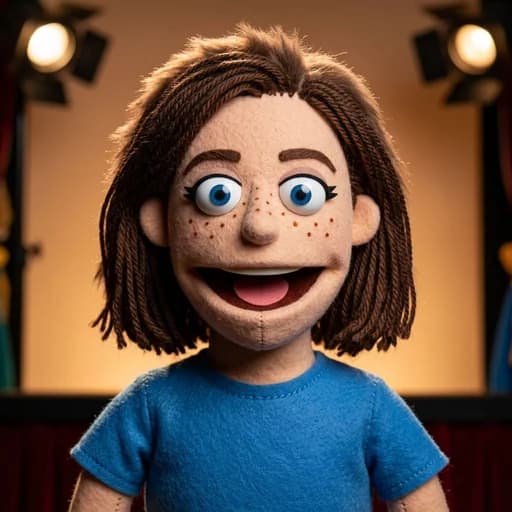
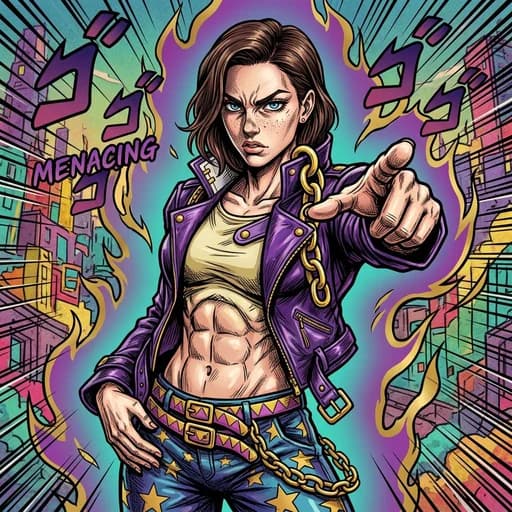
Photos transformed into Happy Face with our Smile AI Filter
More than a one-tap filter
Filters give you a look in one tap. When you want full control, open the AI Image Editor and change anything by typing — remove objects, swap backgrounds, retouch and upscale. Editing a portrait or an old picture? The AI Photo Editor is tuned for exactly that. You only pay for what you use — credits never expire, no subscription.