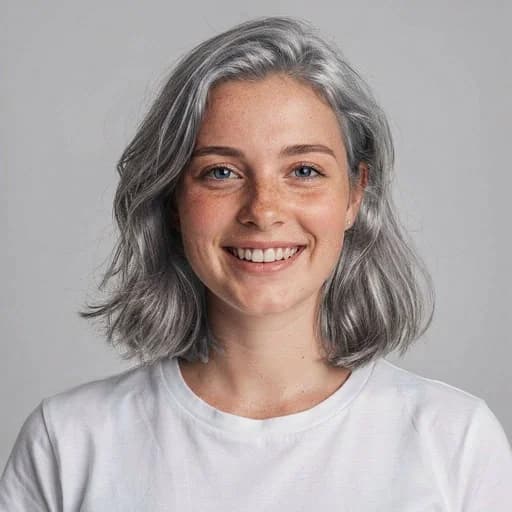
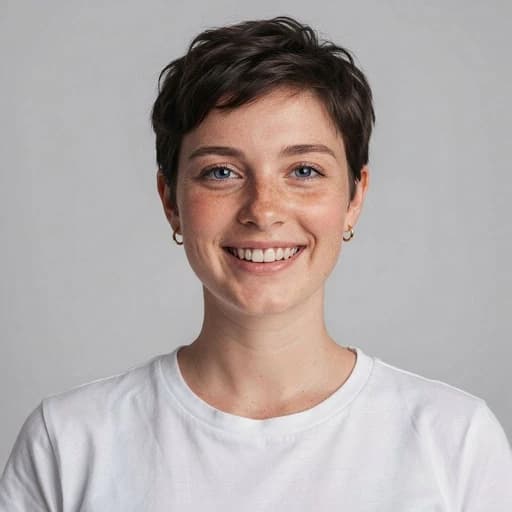
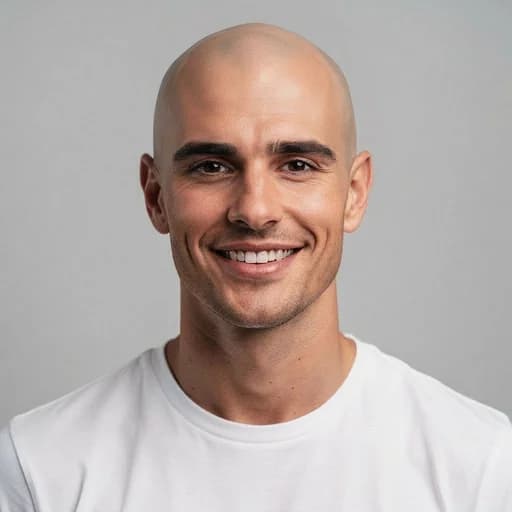
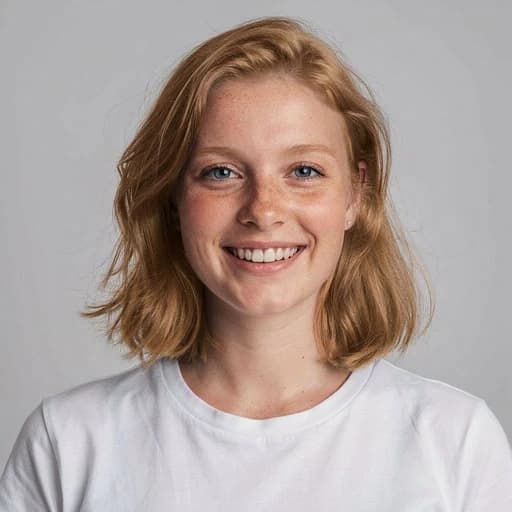
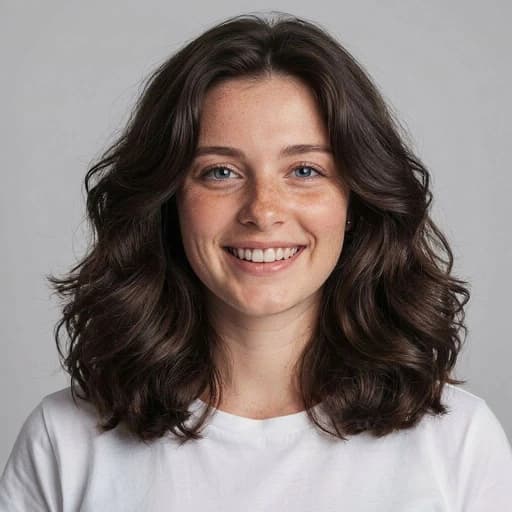
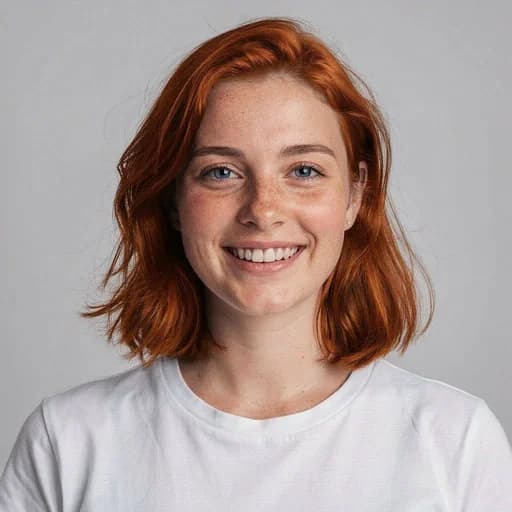
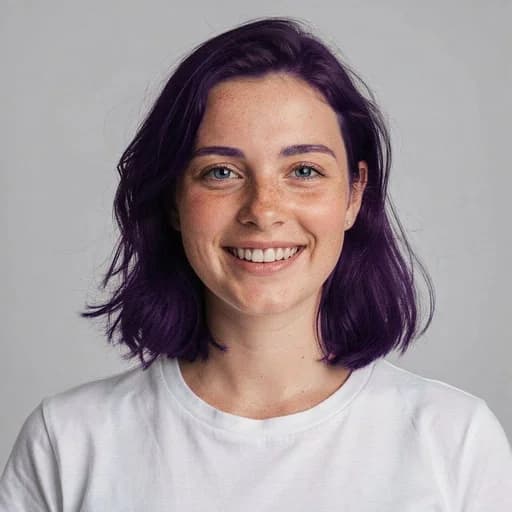
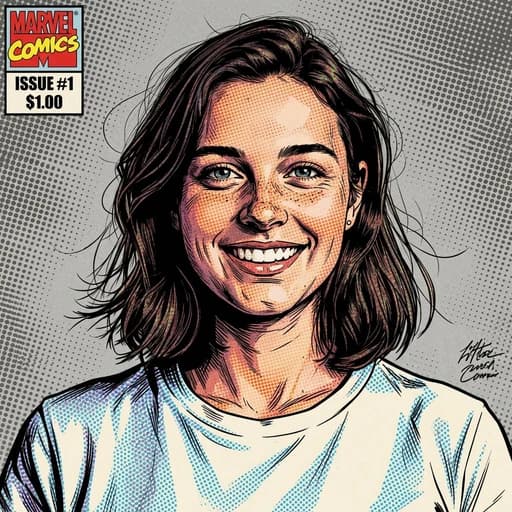
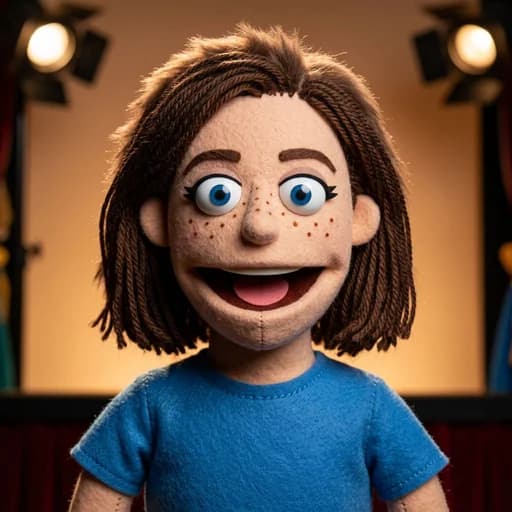
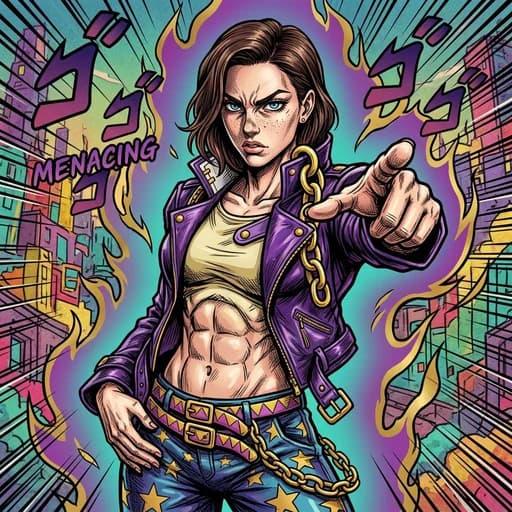
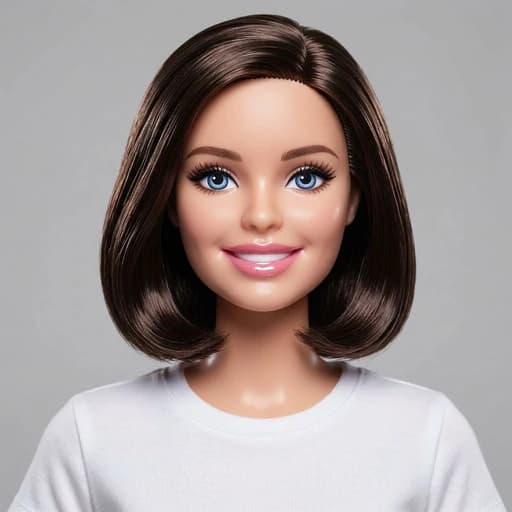
Brown Hair AI Filter
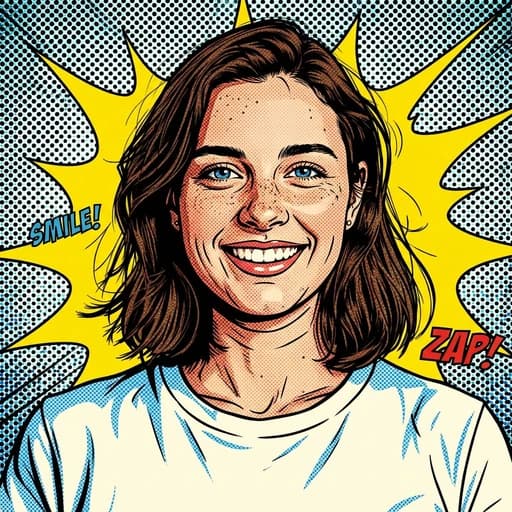
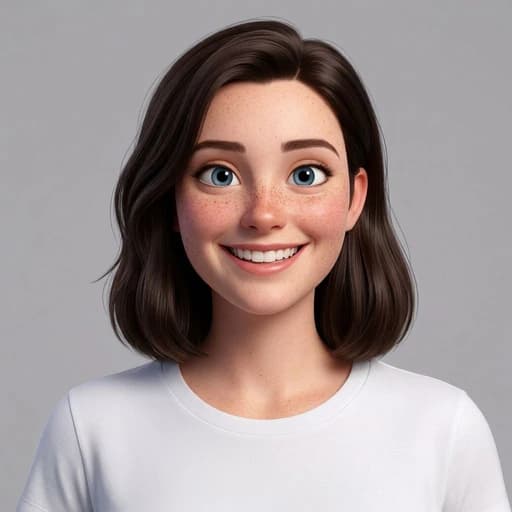
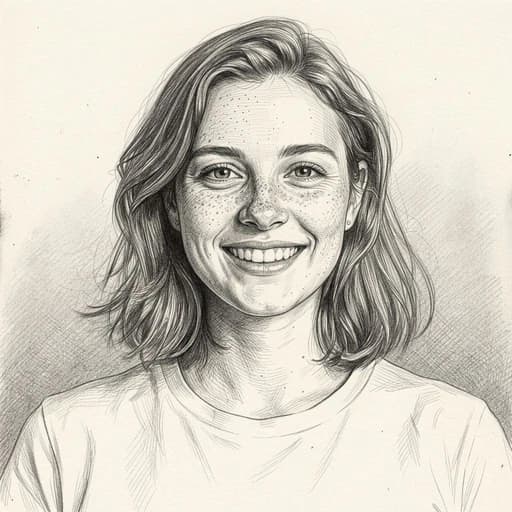
See your new look by applying the Brunette Hair AI Effect with AI
Upload your photo
Drag and drop, or choose a file from your device.
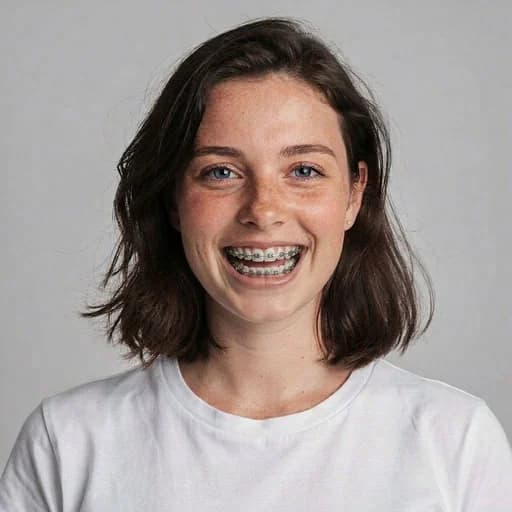
Before & After: Brown Hair AI Filter
Tap or drag the slider to see the result.

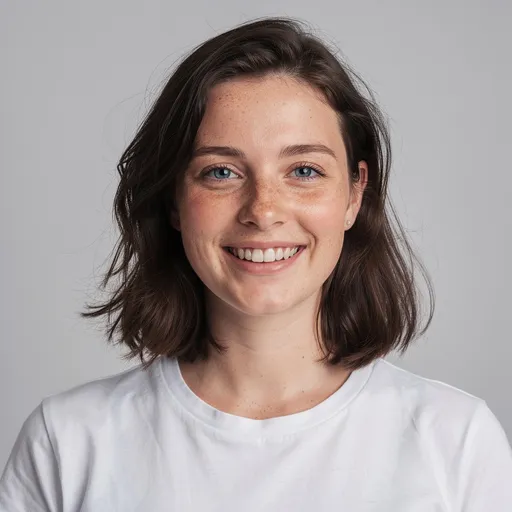
Before
After
Tap to compare
Brown Hair AI Filter FAQs
Upload your photo to PicTools.AI. The AI changes your hair to brown while keeping your face, skin tone, and the rest of the photo exactly the same. No editing skills needed.
You can try PicTools.AI with a limited free allowance. Continue in the app to check the allowance available to your account. More edits require a credit pack or subscription.
Yes. The AI applies a realistic brown hair color that matches your hair length and texture, so the result looks as natural as possible.
Yes. The AI works on all hair colors, including blonde, red, and black. It applies a believable brunette tone that blends with your natural hair length and texture.
The AI applies a rich, natural mid-brown. A classic brunette tone that suits most skin tones and hair types. It avoids flat digital fills and adapts to your hair texture for a realistic result.
No. The AI targets only the hair. Your face, skin, background, and lighting stay exactly the same.
Clear portraits with fully visible hair work best. Good lighting and a clear separation between hair and background produce the most natural color change.
More than a one-tap filter
Filters give you a look in one tap. When you want full control, open the AI Image Editor and change anything by typing — remove objects, swap backgrounds, retouch and upscale. Editing a portrait or an old picture? The AI Photo Editor is tuned for exactly that. You only pay for what you use — credits never expire, no subscription.